Back to blog home
Holiday Office Security Camera Checklist for Multi-Site Businesses
by Team Rhombus, on November 20th, 2026
Physical SecurityQuick Summary
- Before offices close for the holidays, assign reviewers to check camera status and footage remotely at every site.
- Check views of entrances, reception, delivery points, and other areas that need coverage. Confirm each camera records a usable image in the lighting you expect during closure.
- Verify camera status, recording, retention settings, and access for authorized reviewers before staff leave.
- During closure, review activity across sites against scheduled deliveries and maintenance. Give each event that needs follow-up a named responder.
- After reopening, review flagged footage, document camera faults, and restore normal monitoring schedules.
Why office closures change what cameras need to do
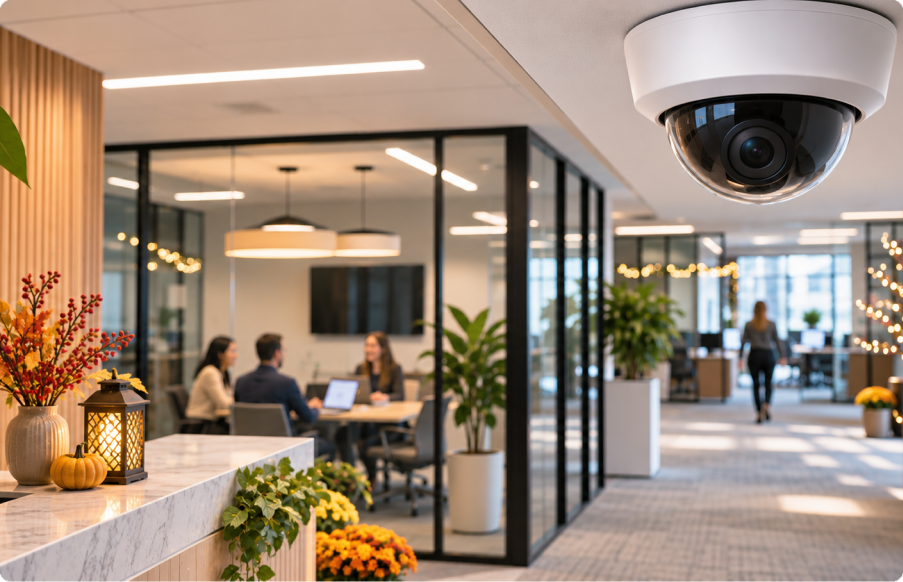
Office security cameras need clear views of entrances, reception, and delivery points under the lighting you expect during closure. With fewer people on site, remote reviewers must be able to check visits and deliveries on video. Map those views at each office before staff leave.
Recording and review plans determine whether those views remain useful. Keep footage long enough to cover the closure and the time you need to review it afterward. Assign someone to check video remotely and someone to follow up when activity needs a site visit. If your camera system offers a multi-site view, use it to check camera status and footage without signing into each office separately.
Before closure: confirm coverage and recording at every site
Before the holiday closure, map the views you need at each office and name the camera that provides each one. Start with entrances, reception, and delivery points. Add parking areas and approaches to server rooms or information technology (IT) rooms where those views matter at your site. Check the live image rather than assuming a camera covers everything on a floor plan. A door may appear in frame while the threshold or package drop-off point remains out of view.
Check camera health while someone is still on site to correct problems. Confirm that each camera is online, shows the intended area, and produces a usable image under the lighting expected during closure. Test after lights switch to their holiday schedule if possible. Reflections from seasonal lights, a dark reception desk, or a blocked lens can make an otherwise working camera less useful for remote review.
Confirm recording and retention for each critical view. Check that the camera records continuously if your closure plan calls for it, then open a recent recording to verify playback. Compare the configured retention window with the length of the closure and the date when someone will review footage. Set the retention window to include the planned post-closure review, so footage is still available when the reviewer checks it.
Test remote access with the people assigned to review footage. Have an authorized reviewer open live and recorded video for each site from their normal remote location, and confirm that their permissions cover the cameras they need. If you use Rhombus, verify the relevant sites and cameras appear in the cloud-managed console and that reviewers can reach the recordings they need. Record any missing view, offline camera, or access problem by site and assign an owner before the office closes.
During closure: who reviews footage and how
Assign one primary reviewer and a backup for each day of the closure. Give them a site list, a review time, and access to the camera views they need. Set review times around each site’s expected activity. For example, check footage after scheduled deliveries or maintenance visits. At each review, confirm that critical cameras remain online and that recent recordings play back. Then check activity around entrances, reception, and delivery points.
Compare recorded visits with the closure schedule and authorized access records. A cleaning visit at its agreed time may need no further action, but an unexpected arrival or a delivery outside the planned drop-off point needs follow-up. Record the site, camera, time, and reason for concern so the next reviewer can find the footage without repeating the search.
Name a responder for each site before anyone needs to make a call. The reviewer can send that person the relevant footage or time range and ask them to check the visit against delivery records, maintenance plans, or authorized access. If the responder cannot explain the activity, follow your existing incident procedure. Keep a brief record of the decision and any camera that stopped recording or produced an unusable image for the reopening review.
After reopening: close the loop on every site
After reopening, review flagged camera events and leave each site’s holiday record open until outstanding follow-up is assigned. Compare the footage with the responder’s notes and the schedule for deliveries, cleaning, and maintenance. Record who reviewed the event, what happened, and whether anyone still needs to follow up. Preserve relevant footage according to your retention policy.
Log camera problems separately so a resolved event does not hide an equipment issue. For each offline camera, poor night image, or storage problem, record the affected view, the time the problem began if known, and the person responsible for repair. Check the footage again after the repair to confirm that the camera records a usable view.
Restore each site’s normal monitoring and notification schedule, then confirm that authorized reviewers can access the expected cameras. Keep the event log and camera issue list with your site checklist. You can use those records to check whether the same views or settings need attention before the next closure.
Holiday camera check table
Copy this table for each site. Replace the site and camera placeholders, and record each check’s date and result in the status column.
| Camera check | Site and camera | Owner | Verification method | Date and result |
|---|---|---|---|---|
| Entrances, reception, and delivery views | Enter site and camera names | Facilities lead | Check live views for blocked areas | Enter before closure |
| Image quality in expected lighting | Enter site and camera names | Facilities lead | Check footage under expected closure lighting | Enter before closure |
| Recording and retention | Enter site and camera names | Security lead | Play back recent footage and check retention settings | Enter before closure |
| Remote reviewer access | Enter site and camera names | Security lead | Have each authorized reviewer open live and recorded video remotely | Enter before closure |
| Camera status and scheduled activity | Enter site and camera names | Assigned reviewer | Check status and playback; compare visits with the schedule | Enter during closure |
| Flagged footage and camera faults | Enter site and camera names | Security lead | Review flagged footage, record unresolved issues, and verify repairs | Enter after reopening |
| Normal monitoring schedule | Enter site | Security lead | Confirm usual review and notification settings | Enter after reopening |
Reviewing Rhombus video across sites
Rhombus offers cloud-managed video for reviewing cameras across sites. Before closure, confirm that each site appears in the console and that authorized reviewers can open its live and recorded video. Check the recording configuration and retention settings for each critical camera rather than assuming footage will be available after reopening.
Central access still needs a review plan. Give one person responsibility for checking the sites at agreed intervals and name a backup. If a reviewer finds an offline camera, send the site and camera details to the assigned responder. For unexpected activity, share the relevant footage or time range according to your access procedures. Schedule a Rhombus demo to see how authorized reviewers can work across your offices.
%20--%3e%3csvg%20version='1.1'%20id='Layer_1'%20xmlns='http://www.w3.org/2000/svg'%20xmlns:xlink='http://www.w3.org/1999/xlink'%20x='0px'%20y='0px'%20viewBox='0%200%20110%20110'%20style='enable-background:new%200%200%20110%20110;'%20xml:space='preserve'%3e%3cstyle%20type='text/css'%3e%20.st0{fill:url(%23SVGID_1_);}%20%3c/style%3e%3cg%3e%3clinearGradient%20id='SVGID_1_'%20gradientUnits='userSpaceOnUse'%20x1='25.325'%20y1='766.725'%20x2='84.725'%20y2='707.325'%20gradientTransform='matrix(1%200%200%201%200%20-682)'%3e%3cstop%20offset='0'%20style='stop-color:%23006F94'/%3e%3cstop%20offset='1'%20style='stop-color:%2300C1DE'/%3e%3c/linearGradient%3e%3cpath%20class='st0'%20d='M106.9,47.5L62.5,3.1c-4.1-4.1-10.9-4.1-15,0L3.1,47.5c-4.1,4.1-4.1,10.9,0,15l44.4,44.4%20c4.2,4.2,10.9,4.2,15.1,0L107,62.5C111,58.4,111,51.6,106.9,47.5z%20M55.5,71.2c-9.4,0.3-17-7.3-16.7-16.7C39.1,46,46,39.1,54.5,38.8%20c9.3-0.3,17,7.3,16.7,16.7C70.9,64,64,70.9,55.5,71.2z'/%3e%3c/g%3e%3c/svg%3e)
Related Articles